
When working on complex models with many supports, it can be difficult to find specific supports, especially those hidden inside internal structures. Lychee Slicer includes support visibility filters that let you display only the supports you need to work on, making it much easier to select, edit, or delete them in bulk.
Where to find the Support Visibility options
In the Prepare tab, open the View menu at the top of the screen, then go to Support Visibility. You will see a list of filters that control which supports are displayed on your build plate.
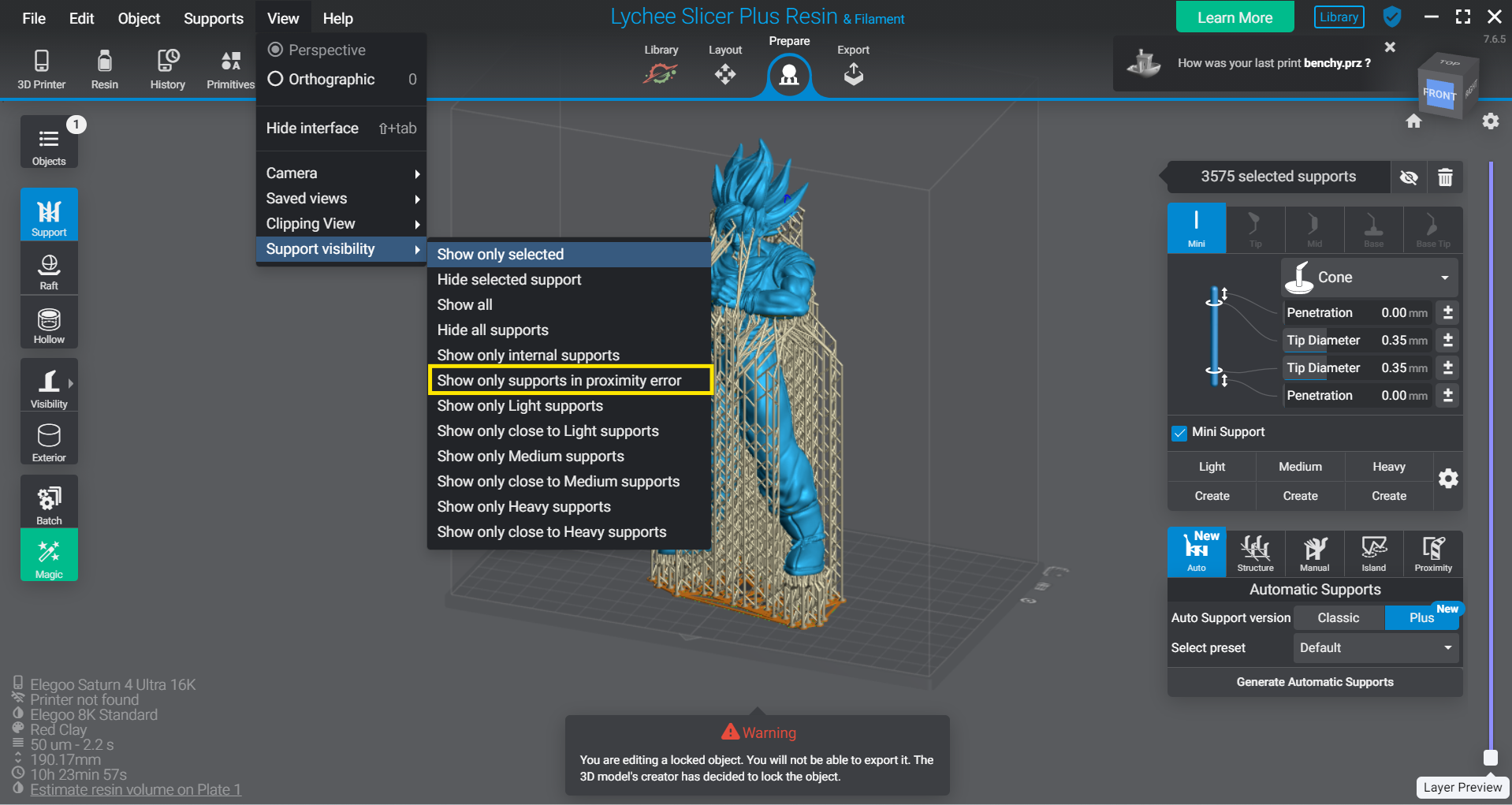
Available visibility filters
General filters
- Show all — Displays every support on the plate. This is the default view.
- Hide all supports — Hides all supports so you can inspect your model freely.
- Show only selected — Displays only the supports you have currently selected.
- Hide selected support — Hides the supports you have selected.
Filters by support location
- Show only internal supports — Displays only supports located inside your model. Very useful for hollowed models or parts with internal cavities.
- Show only supports in proximity error — Displays only the supports marked in red because they are too close to or colliding with the model or other supports.
Filters by support type
- Show only Light / Medium / Heavy supports — Displays only supports of the selected type.
- Show only close to Light / Medium / Heavy supports — Displays supports located near supports of the selected type.
Common use case: deleting all colliding supports at once
If Lychee Slicer warns you that some supports are too close to or colliding with your model, you don't need to hunt for them one by one:
- Go to View > Support Visibility > Show only supports in proximity error. Only the problematic supports will remain visible.
- Select all the visible supports.
- Delete them using the trash icon next to the selection counter at the top of the Supports panel.
- Switch the view back to Show all to continue working normally.
You can then add new supports manually in those areas, or regenerate automatic supports if needed.